# Home
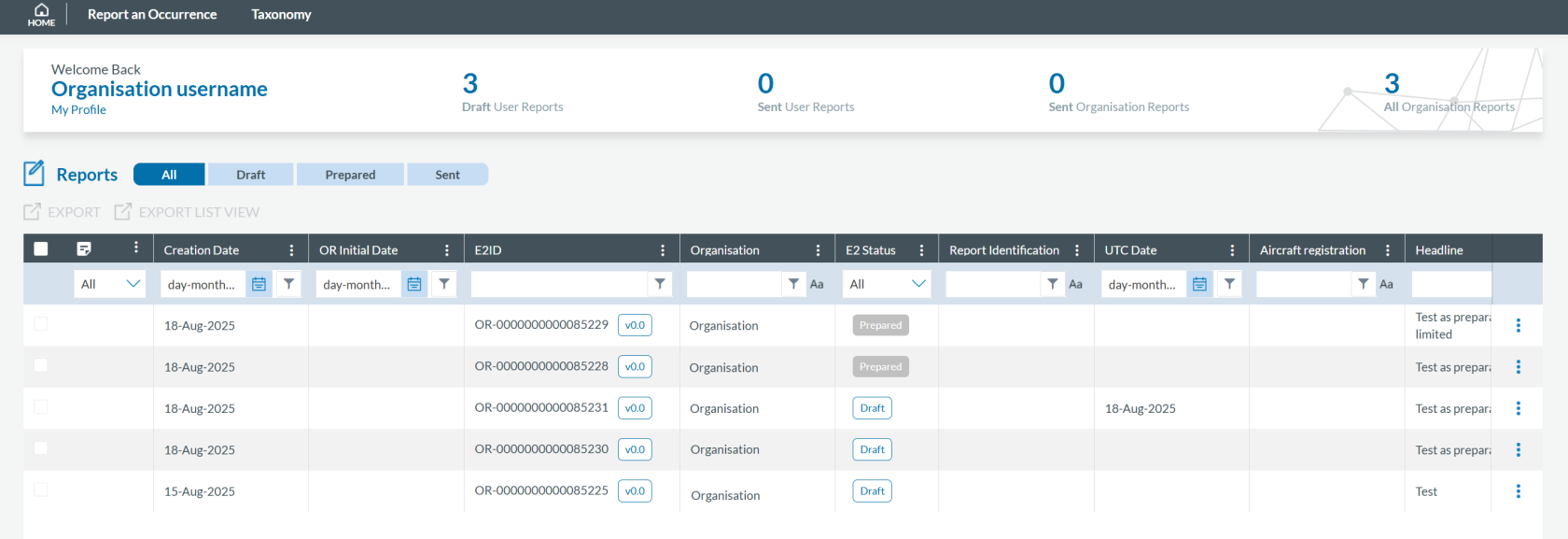
**Registered users** can access the list of reports by clicking on 'Home':
[](https://help.ci-aviationreporting.eu/uploads/images/gallery/2025-10/eGqimage.png)
Below the menus bar, the system displays the following information:
· Number of Draft User Reports;
· Number of Sent User Reports;
· Number of Sent Organisation Reports (only for organisations):
· Number of Organisation Reports (only for organisations).
Under this menu bar, the system displays the list of All Reports that can be filtered through the ‘All’, ‘Sent’ and ‘Draft’ tabs. Draft and Sent are the possible status of the reports for the Organisation. Note that Draft reports can also be blocked. If a Draft Report is blocked it is because it the author is other Organisation Administrator.
Opposite to the tabs, the system displays the following buttons:
· Upload PDF (for individual reporters)/ Upload E5X/PDF(for organisations);
· E5X Results (only for organisations);
· E5X Validation Results(only for organisations).
Below, the system displays the Table of Reports with columns also working as filters, which are attributes or metadata of the reports.
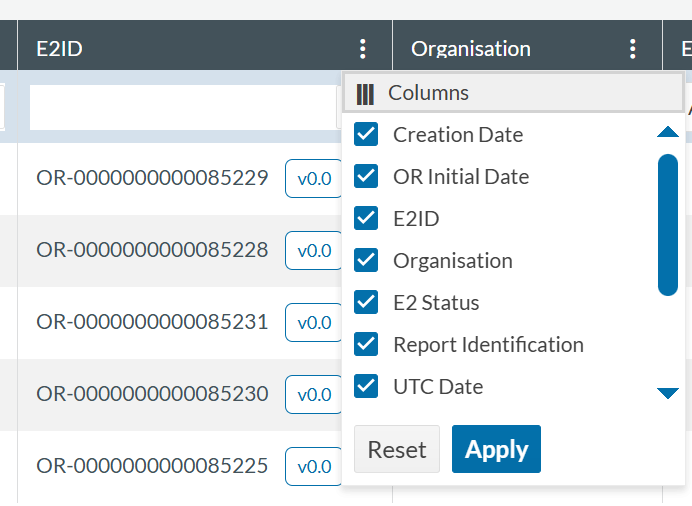
The Reporter can alter the position of each column by dragging and dropping them.
Next to the title of each column, there is a 3-dot menu through which the Reporter can filter the columns to be displayed:
[](https://help.ci-aviationreporting.eu/uploads/images/gallery/2025-10/OT3image.png)
Another customization of the List of reports is explained in Section Custom Columns
The status of Original Reports can be:
- **Sent**: Reports that have already been submitted to the competent authority by the user.
- **Draft**: Temporary documents the user is currently working on. When a report is in Draft status, only the Reporter who created it can access and modify it. For other Reporters, the report is locked and displays the following icon in the report list: 
Organisation Administrators can delete Drafts created by other Reporters within their organisation.
- **Prepared**: Reports created by users with the Preparator or Preparator Limited role that have not yet been submitted to the competent authority.
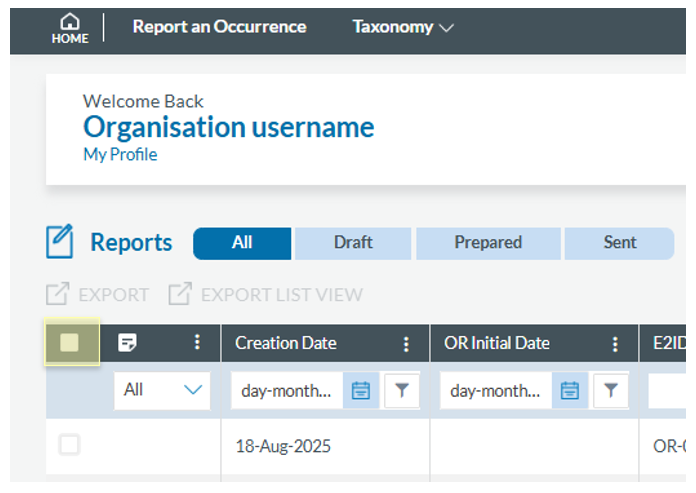
All the rows of reports are preceded by a checkbox to select the records. Organisation Administrators can also perform a multiple selection per page through the checkbox located on the left corner of the table, before the heading of the columns:
[](https://help.ci-aviationreporting.eu/uploads/images/gallery/2025-11/8fkimage.png)
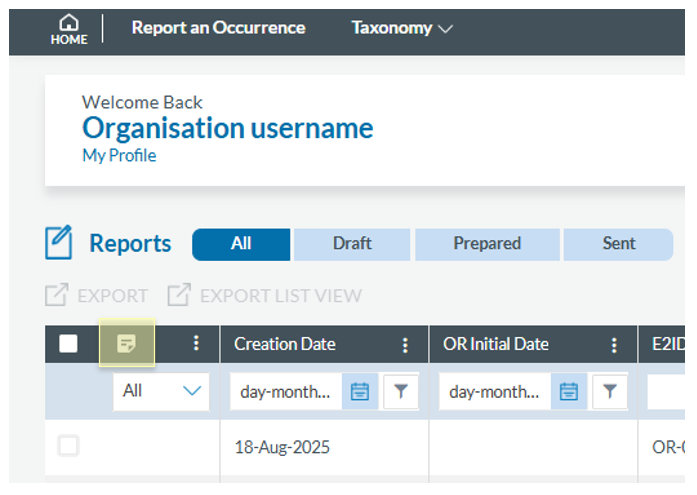
Next to this check box, the first column is the ‘Authority Comments’:
[](https://help.ci-aviationreporting.eu/uploads/images/gallery/2025-11/cMKimage.png)
This column can only be filtered by 'Yes' or 'No' option. It displays the OR that have received a comment from the Authority. By clicking in the icon in each row, the user can open the comment the OR has received. These comments cannot be replied to and are displayed in descendant chronological order.
[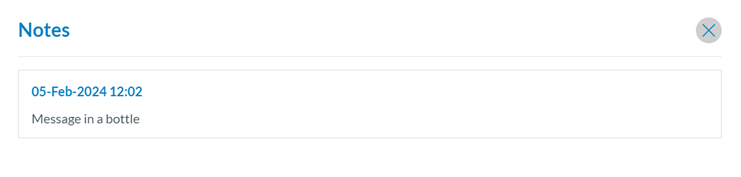](https://help.ci-aviationreporting.eu/uploads/images/gallery/2025-11/lk5image.png)
Above the table of Reports, the system displays an ‘Export’ link. This feature is detailed in Export Reports section.
The system displays a kebab menu in the last section of each table row:
[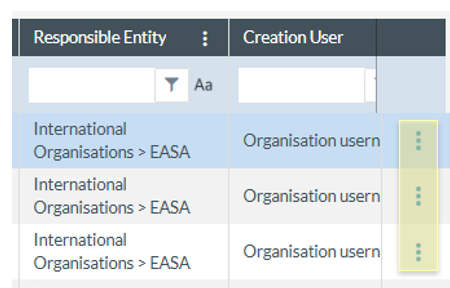](https://help.ci-aviationreporting.eu/uploads/images/gallery/2025-11/PVSimage.png)
The options of this menu vary depending on the status of the report.
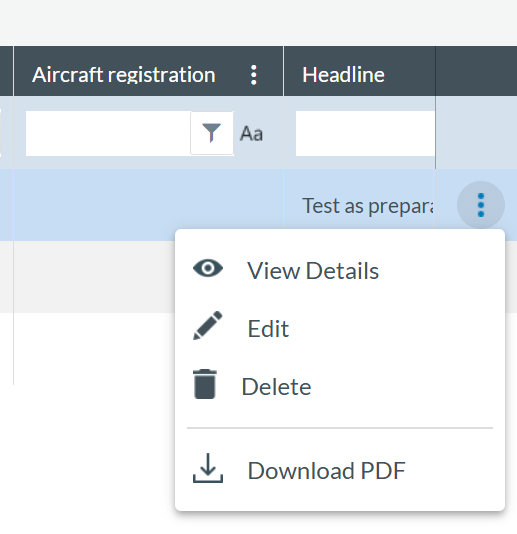
The 3-dot menu on the right of each row gives access to the following options:
[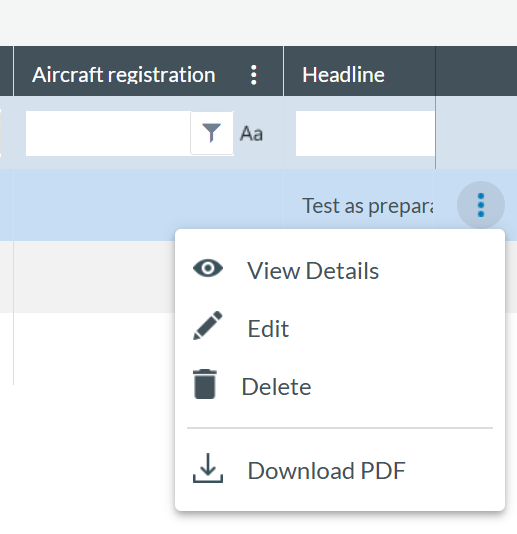](https://help.ci-aviationreporting.eu/uploads/images/gallery/2025-10/Qj5image.png)
- View Details
- Edit
- Delete
- Download PDF
At the top of the report list, you'll find the options for 'EXPORT' or 'EXPORT LIST VIEW'.
### View Details
As a **registered user**, you can access OR details directly from the report list by clicking on the 3-dots menu of the specific report in the list and click on ‘View Details’:
[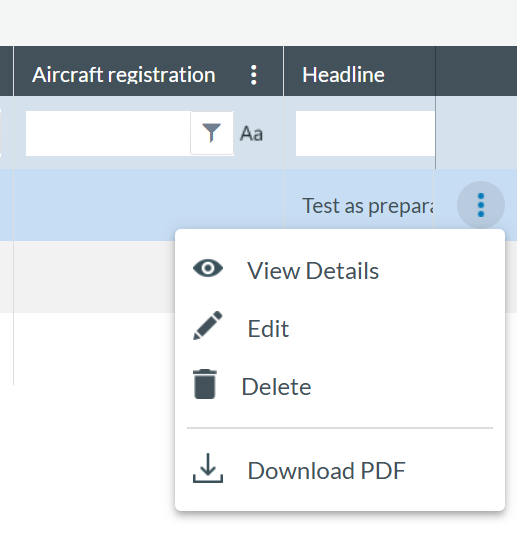](https://help.ci-aviationreporting.eu/uploads/images/gallery/2025-10/AgXimage.png)
Alternatively, you can double-click on any field of the report on the list of reports, and the system will show the webform of the specific report:
[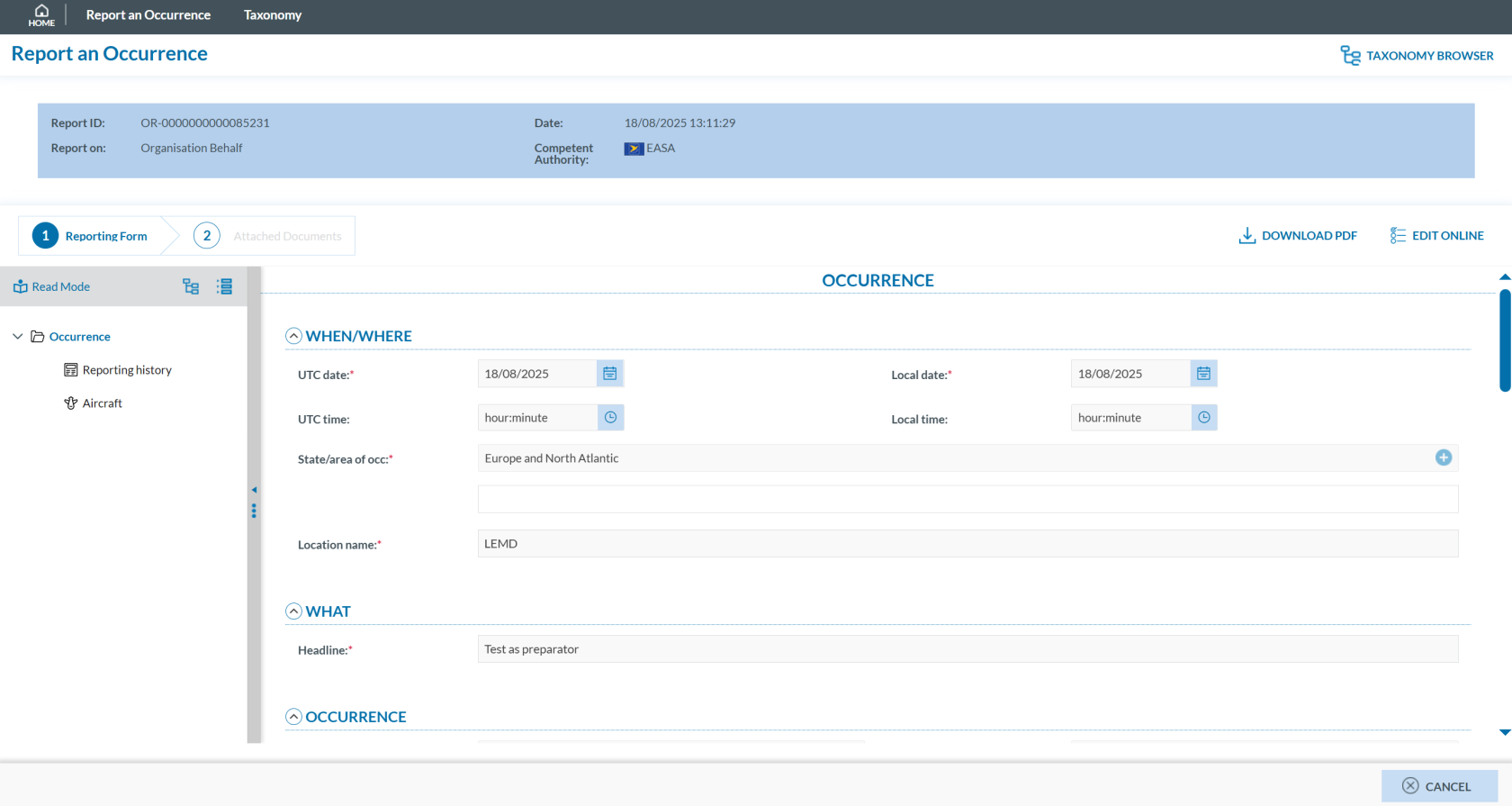](https://help.ci-aviationreporting.eu/uploads/images/gallery/2025-10/hZYimage.png)
On top of the page the system displays the following information:
· Report ID;
· Report on: if it is an Organisation or not.
· Date;
· Competent Authority.
Below the Reports information, the system displays the Report webform (Reporting form tab).
You can click on the ‘DOWNLOAD PDF’ button if you want to access the report in PDF format or click on 'EDIT ONLINE' if you intend to update the fields through the web form. If this is the case, the system will make the form editable; see Edit a report section for further details.
On the left of the page, you can click on 'Read Mode'. The system will display the report as a printable page:
[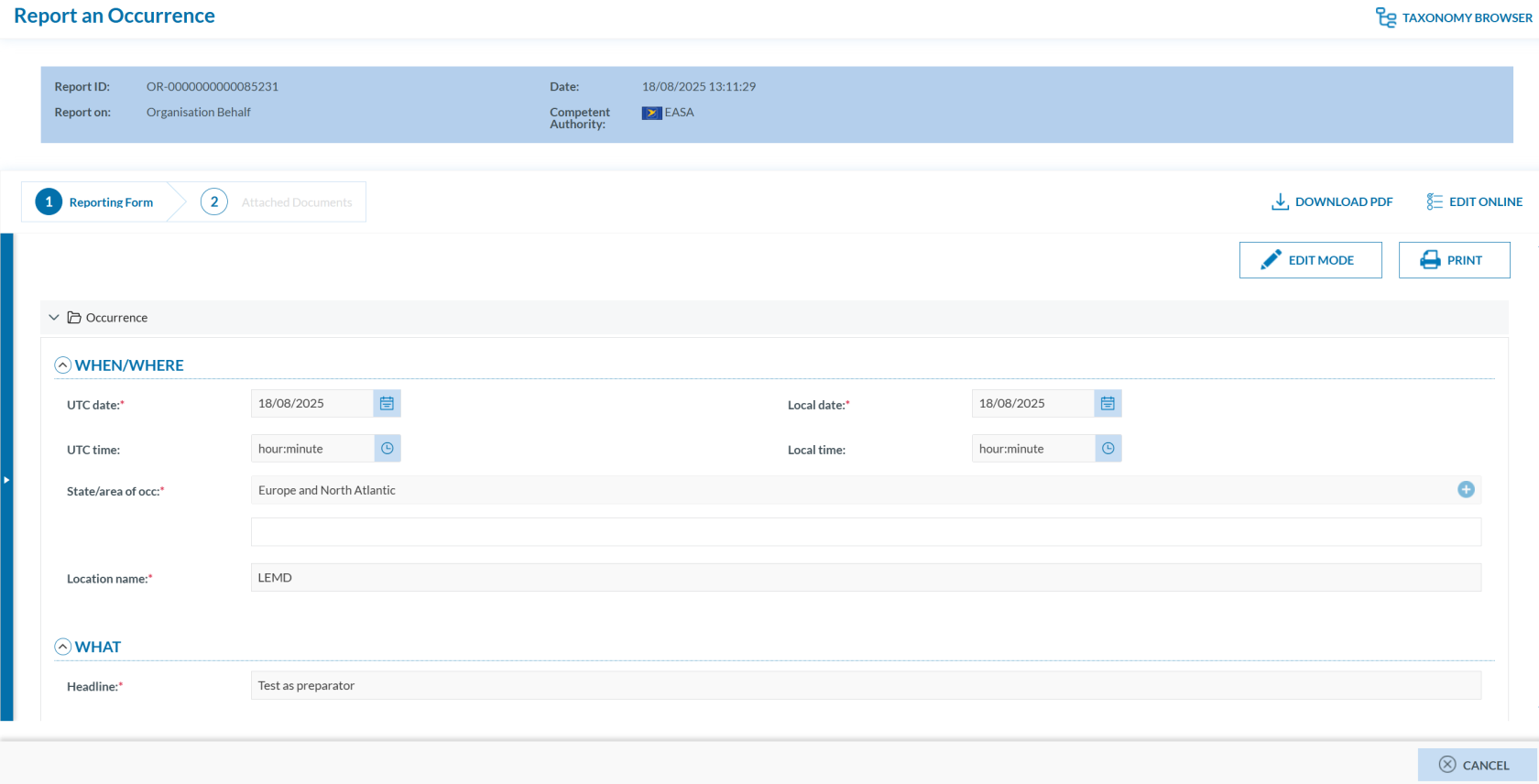](https://help.ci-aviationreporting.eu/uploads/images/gallery/2025-10/L3uimage.png)
You can click on the 'PRINT' button to print the complete report, and as in the previous page, you can download a pdf of the report through the 'DOWNLOAD PDF' button or update the report through the 'EDIT ONLINE' button. Click the 'EDIT MODE' button to return to the previous page.
### Edit
As a **registered user**, you can edit an OR from the report list by clicking the 3-dots menu next to the specific report and selecting 'Edit'.
[](https://help.ci-aviationreporting.eu/uploads/images/gallery/2025-10/AgXimage.png)
Note that if the status of the report is ‘Sent’, the system will display the following message:
[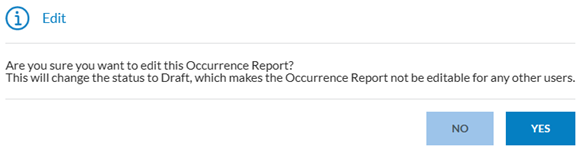](https://help.ci-aviationreporting.eu/uploads/images/gallery/2025-10/1Tmimage.png)
Once you confirm the action, the report will open in a web form where you can make your changes.
At the bottom of the page, four options are available:
[](https://help.ci-aviationreporting.eu/uploads/images/gallery/2025-10/CH4image.png)
- **‘CANCEL’** leaves the edition page without saving any changes made to the document. A confirmation message is displayed.
- **‘SAVE AS DRAFT’** saves the document with status Draft and it reflects the changes made (if any). This blocks the document so no other Reporter can work with the document until the draft is either discarded or submitted.
- **‘DISCARD DRAFT’** closes the edition of the document and deletes the Draft so the document is no longer blocked.
- By clicking the **‘CONTINUE’** button, the system will display the **‘ATTACH DOCUMENTS’** page. See Online section for further details on how to finish the process.
You can click ' DOWNLOAD PDF ' instead of editing the report in the web form. The document is downloaded in a PDF file with all the information so you can edit the corresponding fields and save the changes. After this, you can click on ‘UPLOAD PDF’. See [Offline](https://aviationreporting.eu/en/node/328) section to see how to finish the submission process.
[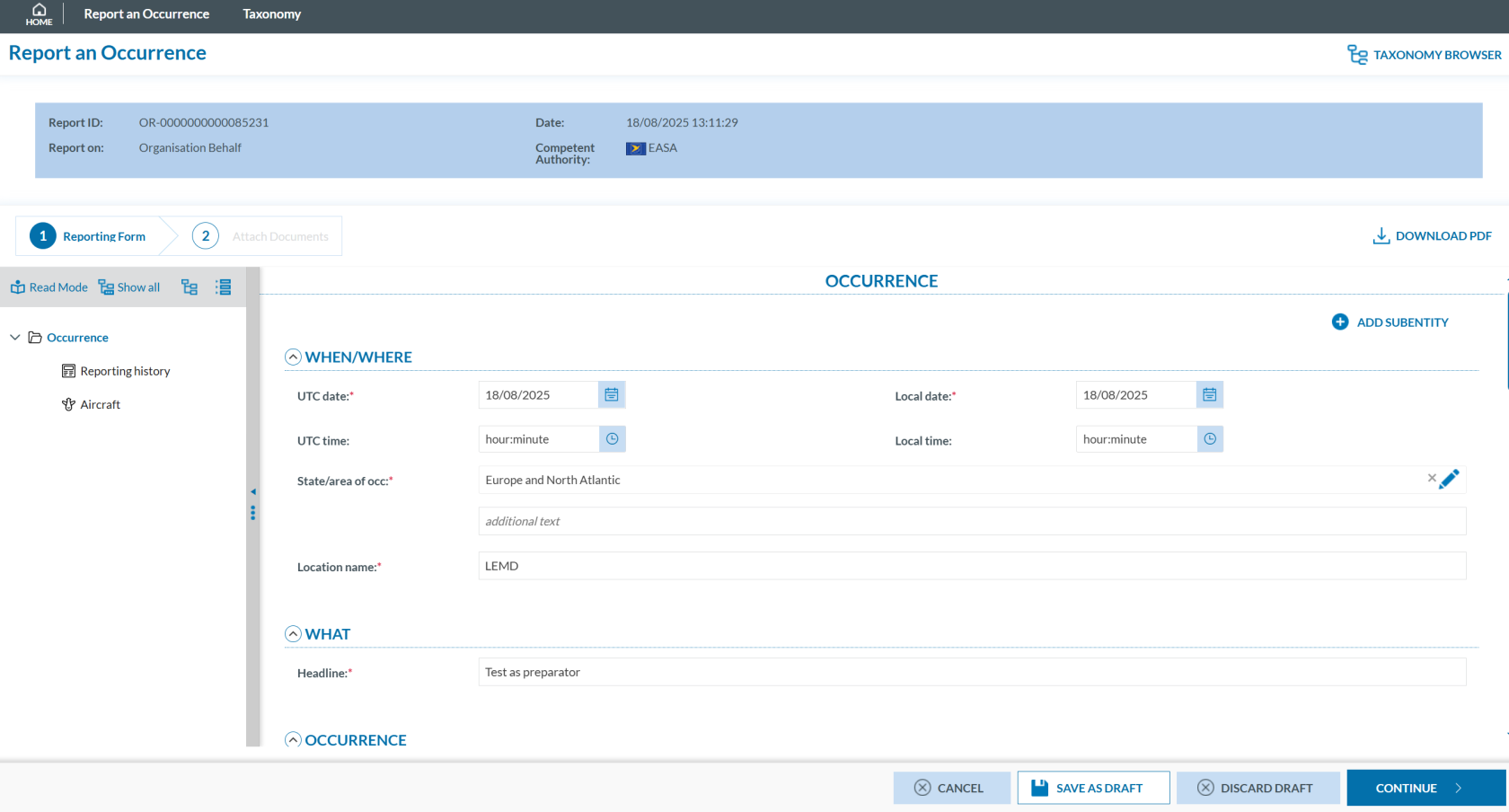](https://help.ci-aviationreporting.eu/uploads/images/gallery/2025-10/ZBPimage.png)
You can also edit the report via the editing options accessible through the ‘View Details’ feature.
### Delete
As a **registered user**, you can delete an OR from the report list by clicking the 3-dots menu next to the specific report and selecting 'Delet'.
[](https://help.ci-aviationreporting.eu/uploads/images/gallery/2025-10/AgXimage.png)
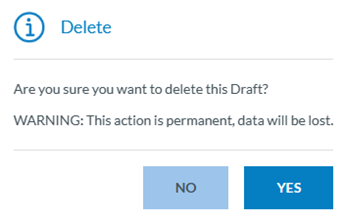
The system will display the following message:
[](https://help.ci-aviationreporting.eu/uploads/images/gallery/2025-10/zFnimage.png)
When you click on 'Yes', the report will disappear from the list of reports.
### Download a PDF
As a **registered user**, you can download a PDF file from an OR reportby clicking the 3-dots menu next to the specific report and selecting 'Download PDF'.
[](https://help.ci-aviationreporting.eu/uploads/images/gallery/2025-10/ofeimage.png)
The system will download a PDF of the report that you can edit or save it.
This Download PDF option is also accessible through the following:
- ‘Edit a report’ feature. See Edit section for details and
- ‘View details’ feature. See View Details section for further details.
### Export
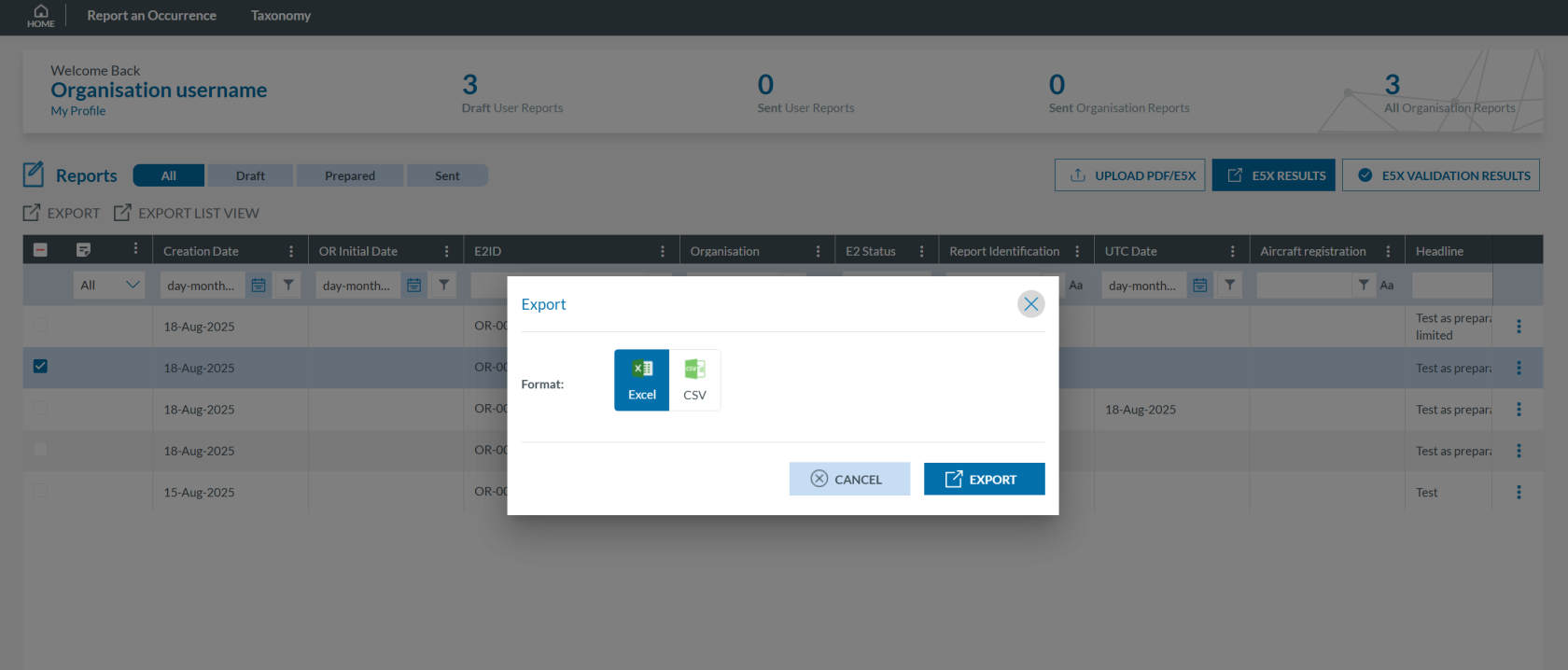
As a **registered user**, you can click the check button on the left side of the specific report rows in the list, then click ‘EXPORT’ above the list. The system will display the Export window, where you can select either the CSV or Excel option and click ‘Export’.
[](https://help.ci-aviationreporting.eu/uploads/images/gallery/2025-10/jTCimage.png)
You can select multiple ORs by holding down the CTRL key.
The system will send you an email with a zip containing the file in the selected format with the reports.
### Export list view
“The 'Export list view' option is equivalent to 'Export' (as explained above), but the exported file includes only the columns configured in the current view.