# How to validate an E5X-file (for organization managers only)

### <span style="mso-ansi-language: EN-US;">Who can validate an e5x-file</span>

<span style="mso-ansi-language: EN-US;">Only users of registered organisations and Authority users can submit e5x-files. Therefore, it is their prerogative to also validate e5x-files and not submitting them to their Authority</span>

<span style="mso-ansi-language: EN-US;">In many cases users of registered organisations and Authority users have an IT service that generates an e5x-file based on data stored in a legacy system. Allowing the IT service to validate, that is check, the e5x-fle, E2 caters for e5x-file validation.</span>

### <span style="mso-ansi-language: EN-US;">As a user from a registered organisation</span>

[![image.png](https://help.ci-aviationreporting.eu/uploads/images/gallery/2025-11/scaled-1680-/7YTimage.png)](https://help.ci-aviationreporting.eu/uploads/images/gallery/2025-11/7YTimage.png)

#### <span style="mso-ansi-language: EN-US;">The validation Interface</span>

<span style="mso-ansi-language: EN-US;">From the home page a direct access to the e5x validation is provided by clicking on the Upload PDF/E5X button</span>

<span style="mso-bidi-font-family: Calibri; mso-bidi-theme-font: minor-latin; mso-ansi-language: EN-US;"><span style="mso-list: Ignore;">1.<span style="font: 7.0pt 'Times New Roman';"> </span></span></span><span style="mso-ansi-language: EN-US;">Upload PDF/E5X</span>

[![image.png](https://help.ci-aviationreporting.eu/uploads/images/gallery/2025-11/scaled-1680-/6NVimage.png)](https://help.ci-aviationreporting.eu/uploads/images/gallery/2025-11/6NVimage.png)

<span lang="EN-GB" style="mso-no-proof: yes;">  
</span>

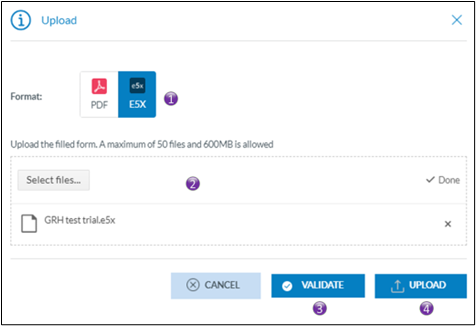
<span style="mso-bidi-font-family: Calibri; mso-bidi-theme-font: minor-latin; mso-ansi-language: EN-US;"><span style="mso-list: Ignore;">1.<span style="font: 7.0pt 'Times New Roman';"> </span></span></span><span style="mso-ansi-language: EN-US;">By selecting e5x, the validation button will appear</span>

<span style="mso-bidi-font-family: Calibri; mso-bidi-theme-font: minor-latin; mso-ansi-language: EN-US;"><span style="mso-list: Ignore;">2.<span style="font: 7.0pt 'Times New Roman';"> </span></span></span><span style="mso-ansi-language: EN-US;">Click either on select files, or drag and drop the files on top of the “Drop files here”; It is possible to validate &gt;1 e5x-file at the time</span>

<span style="mso-bidi-font-family: Calibri; mso-bidi-theme-font: minor-latin; mso-ansi-language: EN-US;"><span style="mso-list: Ignore;">3.<span style="font: 7.0pt 'Times New Roman';"> </span></span></span><span style="mso-ansi-language: EN-US;">Click on validate and the validation process will start. You will get an email conformation that the e5x-file(s) was(were) uploaded. The file(s) is(are) put on a processing queue, that means that they are not validated immediately</span>

<span style="mso-bidi-font-family: Calibri; mso-bidi-theme-font: minor-latin; mso-ansi-language: EN-US;"><span style="mso-list: Ignore;">4.<span style="font: 7.0pt 'Times New Roman';"> </span></span></span><span style="mso-ansi-language: EN-US;">This interface is also used for directly uploading e5x-files, no prior validation will be done and upon success or partial success the e5x-file will be submitted to the Authority</span>

#### <span style="mso-bookmark: _Hlk167717570;"><span style="mso-ansi-language: EN-US;">View validation results</span></span>

<span style="mso-bookmark: _Hlk167717570;"><span style="mso-bidi-font-family: Calibri; mso-bidi-theme-font: minor-latin; mso-ansi-language: EN-US;"><span style="mso-list: Ignore;">2.<span style="font: 7.0pt 'Times New Roman';"> </span></span></span><span style="mso-ansi-language: EN-US;">E5X Validation results</span></span>

[![image.png](https://help.ci-aviationreporting.eu/uploads/images/gallery/2025-11/scaled-1680-/SKSimage.png)](https://help.ci-aviationreporting.eu/uploads/images/gallery/2025-11/SKSimage.png)

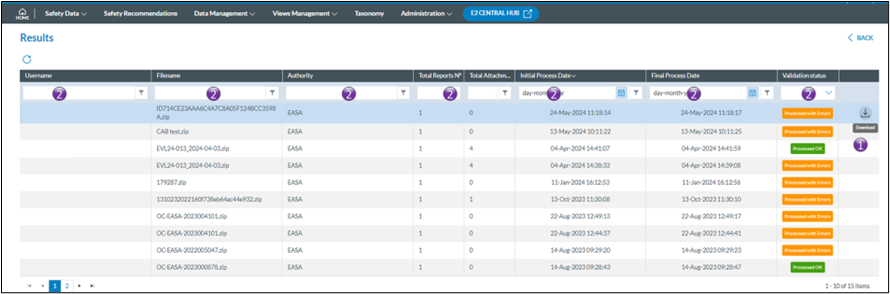
<span style="mso-bookmark: _Hlk167717570;"><span style="mso-bidi-font-family: Calibri; mso-bidi-theme-font: minor-latin; mso-ansi-language: EN-US;"><span style="mso-list: Ignore;">1.<span style="font: 7.0pt 'Times New Roman';"> </span></span></span><span style="mso-ansi-language: EN-US;">Navigating with the mouse to the last column, allows for downloading the validation logfile in case the validation was processed with error.  
The Validation logfile is a CSV-file that can be opened in excel or equivalent as can be seen in the example  
  
</span></span>

[![image.png](https://help.ci-aviationreporting.eu/uploads/images/gallery/2025-11/scaled-1680-/jmnimage.png)](https://help.ci-aviationreporting.eu/uploads/images/gallery/2025-11/jmnimage.png)

<span style="mso-bookmark: _Hlk167717570;"><span style="mso-bidi-font-family: Calibri; mso-bidi-theme-font: minor-latin; mso-ansi-language: EN-US;"><span style="mso-list: Ignore;">2.<span style="font: 7.0pt 'Times New Roman';"> </span></span></span><span style="mso-ansi-language: EN-US;">It is possible to limit the number of rows shown by applying filters in the column headers</span></span>

<span style="mso-bookmark: _Hlk167717570;"><span style="mso-ansi-language: EN-US;">Filters are type sensitive that is depending on the type of column a filter is applied, different filter methods are available</span></span>

<span style="mso-ansi-language: EN-US;"></span>