Reporters How-To's
Here you will find supplementary content for reporters, including step-by-step instructions and examples for relevant topics.
- How to resend and activation email (for organization managers only)
- How to validate an E5X-file (for organization managers only)
- How to understand user status (for organization managers only)
How to resend and activation email (for organization managers only)
What is an activation email?
An activation email is sent when a user account is created.
It contains a hyperlink to the account activation page.
This link is active for 72 hours after having been sent.
Steps to resend
An activation email cannot be resent as such. However, following these steps will mimic the activation process
Step 1
Access the user account
As an Organisation Manager or as a National Security manager you need to activate the user account
Step 2
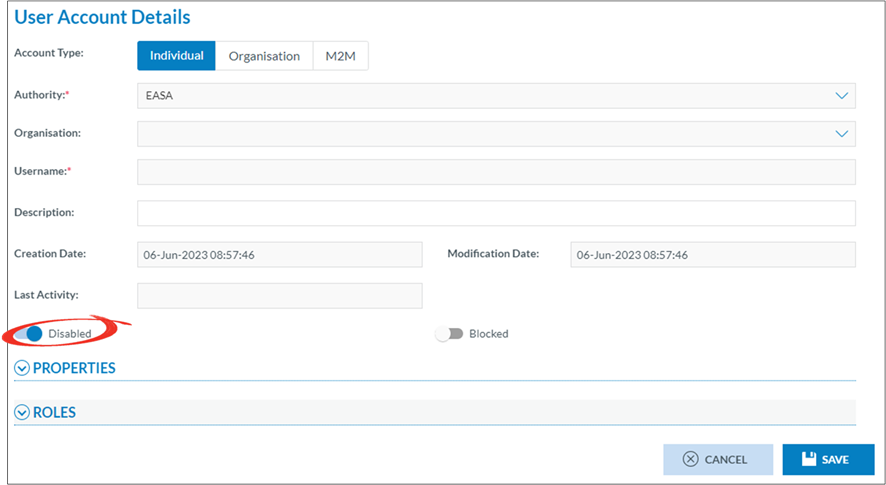
Set the disabled switch to off (left)
Step 3
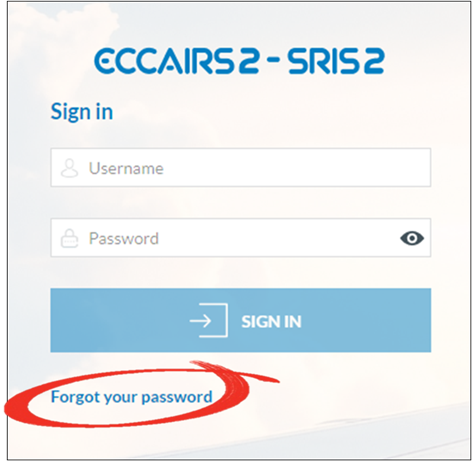
Open the E2 logon page and click on forgot password (in an other browser that the one your are currently in)
Step 4
Enter the username (not the email address) and click recover password
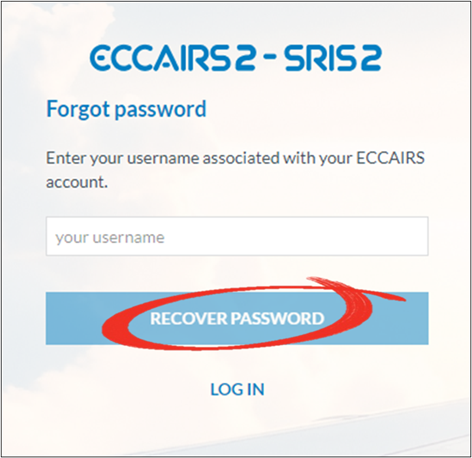
An email will be sent to the email address attached to the username
How to validate an E5X-file (for organization managers only)
Who can validate an e5x-file
Only users of registered organisations and Authority users can submit e5x-files. Therefore, it is their prerogative to also validate e5x-files and not submitting them to their Authority
In many cases users of registered organisations and Authority users have an IT service that generates an e5x-file based on data stored in a legacy system. Allowing the IT service to validate, that is check, the e5x-fle, E2 caters for e5x-file validation.
As a user from a registered organisation

The validation Interface
From the home page a direct access to the e5x validation is provided by clicking on the Upload PDF/E5X button
1. Upload PDF/E5X
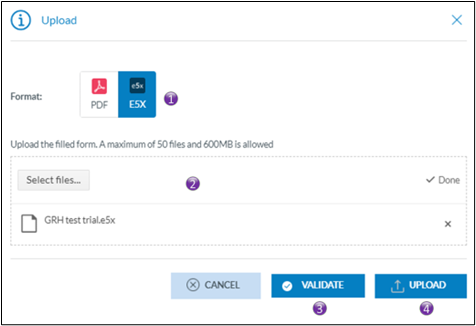
1. By selecting e5x, the validation button will appear
2. Click either on select files, or drag and drop the files on top of the “Drop files here”; It is possible to validate >1 e5x-file at the time
3. Click on validate and the validation process will start. You will get an email conformation that the e5x-file(s) was(were) uploaded. The file(s) is(are) put on a processing queue, that means that they are not validated immediately
4. This interface is also used for directly uploading e5x-files, no prior validation will be done and upon success or partial success the e5x-file will be submitted to the Authority
View validation results
2. E5X Validation results
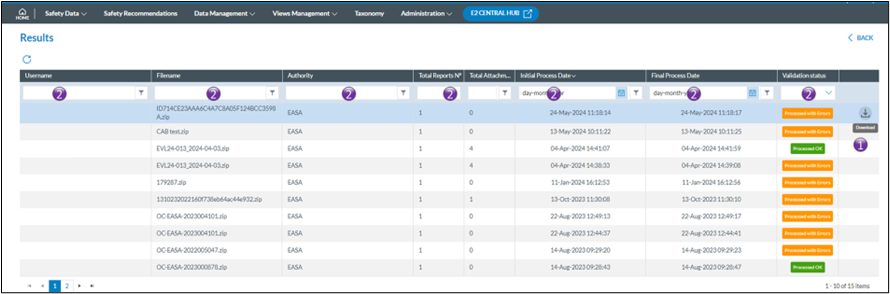

2. It is possible to limit the number of rows shown by applying filters in the column headers
Filters are type sensitive that is depending on the type of column a filter is applied, different filter methods are available
How to understand user status (for organization managers only)
Purpose
Understanding the complexity of different user statuses has long been a challenge. Moreover, a user’s status, and the way it is set, can often be interpreted in multiple ways.
This document aims to clarify the various user statuses, explain how they are assigned, and specify who has the authority to set them.
What user status do exist?

Deleted
· When a user request for his account to be deleted, all fields except his username are anonymised. Consequentially his status will be set to deleted
· When an Authority or an organisation is deleted, then all its users are deleted too.
· An organisation manager or an Authority National Security Administrator cannot delete a user account
Blocked
An account can only be blocked by an administrator. Whether it be an organisation manager or an Authority National Security Administrator. This often happens when users are nog longer active in an organisation or in an Authority.
Users trying to login with their blocked account are requested to contact the administrator.
Disabled
An account can only be disabled by the system. It is automatically done when certain conditions are met. Such as inactivity for more than 90 days. An organisation manager or an Authority National Security Administrator, cannot directly change this.
As this status can only be set by the system, the slide button is greyed out.

Who can do which actions?
Unblocking an account
It is the prerogative of organisation manager or an Authority’s National Security Administrator that can unblock an account which was previously blocked.
When unblocking an account, the user account will also be automatically enabled by the system
Deleting an organisation
Only a National Security Administrator can delete an organisation, which will set all user accounts to deleted
Deleting an Authority
Only an ECCAIRS system administrator may delete an Authority setting all user accounts, organisation and Authority users, to deleted
Re-enabling
An account that is disabled by the system and which is not blocked by an organisation manager or an Authority’s National Security Administrator can be re-enabled by the user
· The user logs in with his correct username and password. If his account is disabled, a red banner with a hyperlink to reactivate his account will be shown at the bottom of the screen
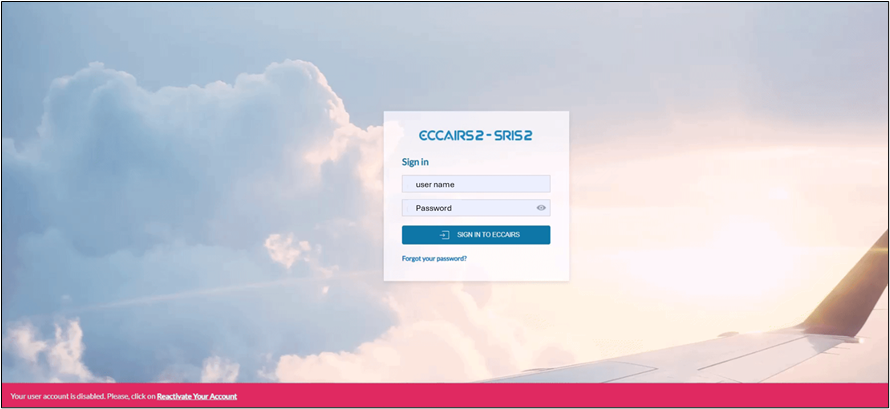
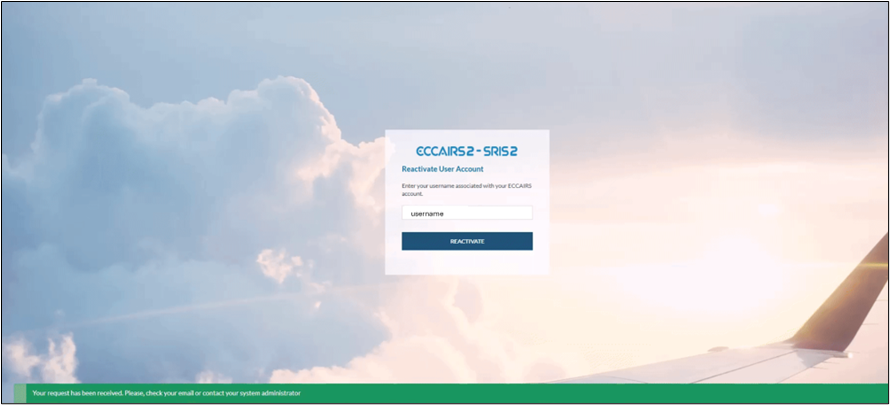
· In the next window, the username is to be entered

An acknowledge banner is shown informing the user that a reactivation email was sent to the email address linked to his account.
To reactivate the account, the user is to click on the “Reactivate your account” button
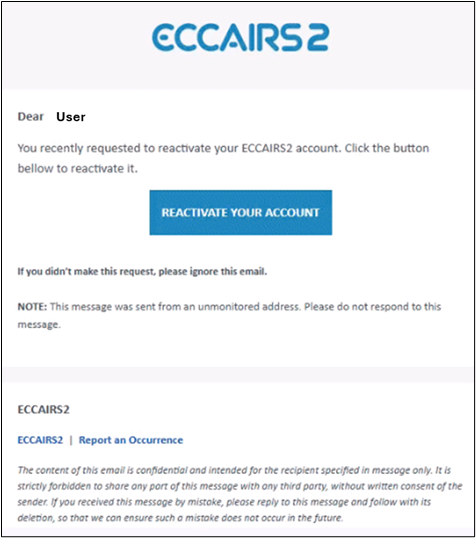
By confirming the reactivation will finalise the re-activation exercise